How to turn a Lichess position into an image
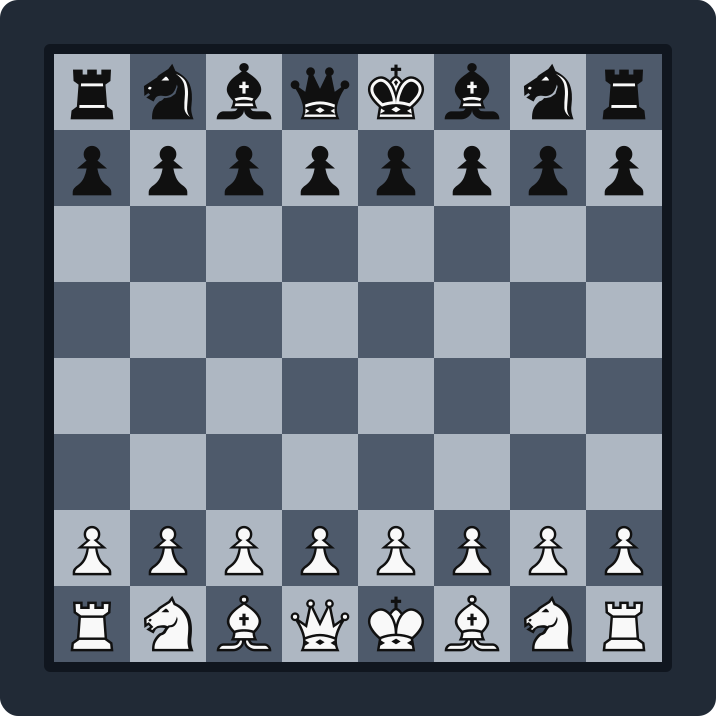
To turn a Lichess position into an image, open the position on Lichess, click the free ChessVG browser extension to capture the board, then download a PNG or open it in the ChessVG editor to export a PNG or vector SVG. Because the extension reads the pieces straight off the board, it works on games, studies, analysis, and puzzles — with no need to copy a FEN. This guide shows the one-click workflow and the manual FEN fallback.
Key takeaways
- The extension reads the Lichess board directly — no FEN needed.
- Works on live games, studies, analysis boards, and puzzles.
- Download a PNG in the popup, or export SVG in the editor.
- Manual FEN paste always works as a fallback.
The one-click way (recommended)
- Install the ChessVG extension from the Chrome Web Store and pin it to your toolbar.
- Open any position on Lichess — a game, study, analysis, or puzzle.
- Click the ChessVG icon. The position is captured and previewed with your chosen theme and piece set.
- Click Download PNG, or Open in ChessVG to add a background, frame, coordinates, and export an SVG or a social-media size.
The manual way (paste a FEN)
- On the Lichess analysis board, copy the FEN shown in the field beneath the board.
- Open the ChessVG editor and paste the FEN into the position box — the board loads instantly.
- Style it and export a PNG or SVG from the Export tab.
Where a Lichess board image helps
Once you can export any position, the same board powers YouTube thumbnails, Instagram posts, blog diagrams, and lesson slides. See the full list of use cases for ideas, or the case studies for how creators use board images to grow reach.
FAQ
How do I turn a Lichess position into an image?
Open the position on Lichess, click the ChessVG browser extension icon to capture it, then download a PNG from the popup or open it in the ChessVG editor to export a PNG or SVG. You can also paste the Lichess FEN into the editor manually.
Can I export a Lichess puzzle as an image?
Yes. The extension reads the board directly, so it works on Lichess puzzles, studies, analysis boards, and live games — anywhere a board is shown.
How do I get the FEN from Lichess?
On the analysis board, Lichess shows a FEN field under the board you can copy. With the ChessVG extension you do not need it — the position is read straight from the board — but you can always paste a FEN into the editor as a fallback.
Does this work without an account?
Yes. Neither the extension nor the ChessVG editor needs an account, and there is no watermark on your exported images.
Related
On the other big site? See how to turn a Chess.com position into an image, read more about the ChessVG browser extension, or start in the editor.
ChessVG is a free tool by ChessSolve. Chess piece artwork and puzzles come from the open-source Lichess project; ChessVG is not affiliated with Lichess.
← ChessVG extension